Download Python for Free for PC and Mobile | Installing Python on Windows, Android, and iPhone
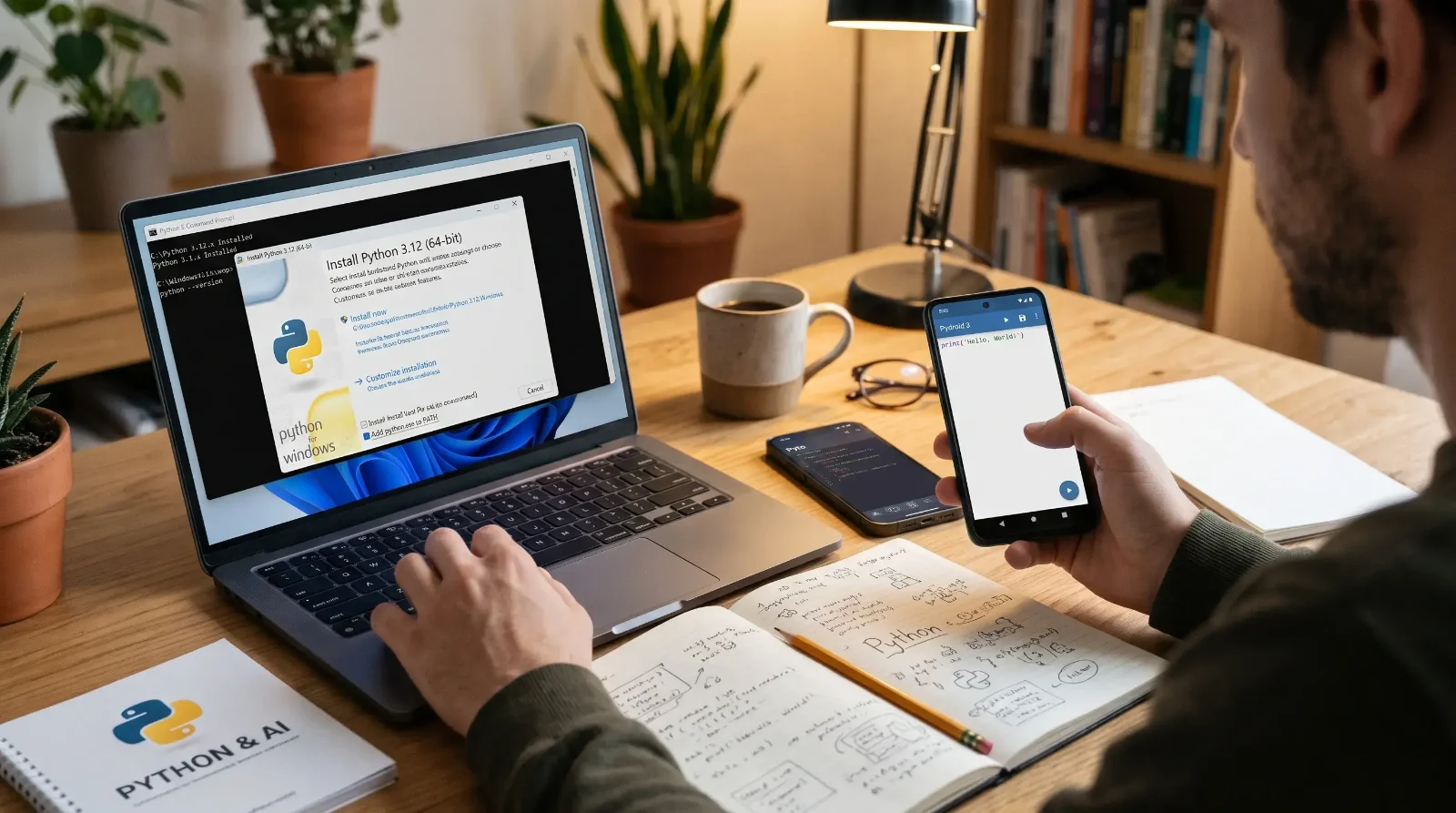
Downloading and installing Python is the foundation for anyone wanting to enter the world of programming today. It is a language with a simple syntax but immense power, making it the top choice for application development and data analysis. Its status continues to grow with rapid technological advancement, and the importance of Python in Artificial Intelligence is evident as an indispensable pillar for building and training intelligent models and machine learning algorithms.
Whether you use a Windows PC or prefer to write and test code on your Android or iPhone smartphone, this guide provides a practical, detailed explanation of every step from downloading and installing to configuring the settings to write your first successful program. Once the environment is set up, you can move directly on to follow the best free Python learning resources and channels from scratch to master the language and gain practical application skills.
1. Downloading Python for PC for Free
Obtaining Python for your computer is completely free through the official website. However, you should consider version compatibility with your device to ensure a stable experience free from compatibility errors.
Choosing the Right Version
- Windows 10 and Windows 11: These systems support the latest stable official Python versions (such as Python 3.11 and above) with a 64-bit kernel, which ensures access to the latest security features and programming libraries.
- Regarding Windows 7 and Windows 8: Modern versions of Python are not officially supported on older Windows systems; therefore, if you are working on Windows 7, you must download Python 3.8.10 at the latest for it to work without issues.
Downloading the Program from the Official Website
To avoid downloading modified or unsafe versions, always ensure you download directly from the authorized Python Software Foundation platform.
Regarding the Python download link for PC: You can download the installation file directly from the official Python download page for computers (python.org) with a single click.
2. How to Install Python on Windows
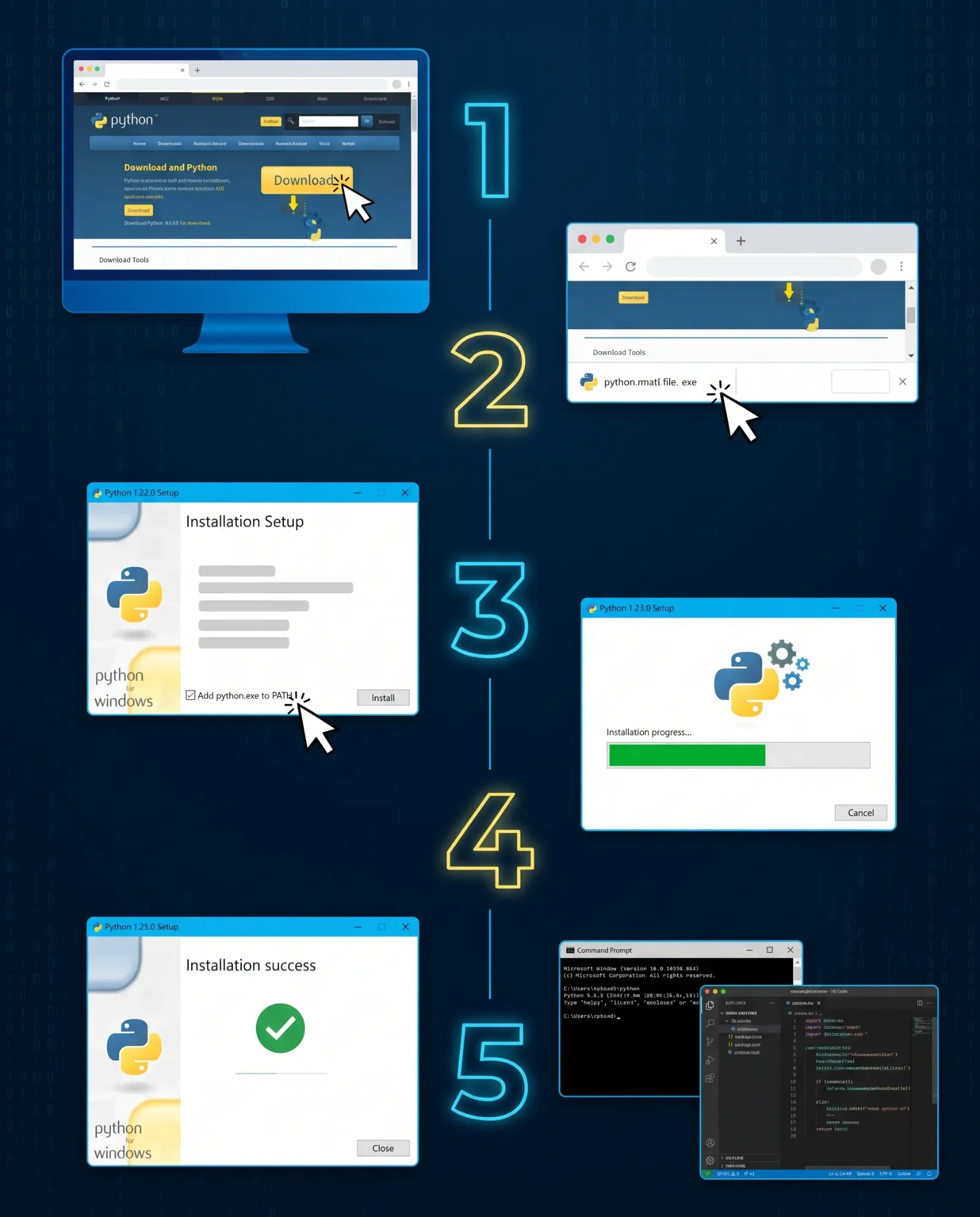
The installation process on Windows takes only a few minutes, but you need to pay attention to one crucial step to avoid command prompt issues later on.
Installation Steps
- Open the installation file you downloaded (ends with the
.exeextension). - The main setup wizard will appear with two options: Quick Default Installation (Install Now) or Customize Installation.
- For beginners, it is recommended to choose Install Now because it installs the built-in standard libraries, the famous
pippackage manager, and the lightweight IDLE environment.
Configuring Installation Settings (The Essential PATH Step)
At the bottom of the first screen of the installer, you will find an unchecked checkbox labeled: "Add python.exe to PATH". You must enable this option by checking it before clicking Install Now. This allows Windows to recognize Python commands and the pip tool from any path in the Terminal without the need to set environment variables manually.
Verifying the Installation
After the installation finishes and the message "Setup was successful" appears, test the interpreter using the following steps:
- Open the Command Prompt by pressing the
Windows + Rkey, typingcmd, and pressing Enter. - Type the following command and press Enter:
python --version - If the version number appears, it means the Python environment is working perfectly.
3. Downloading and Installing Python for Android for Free
Programming does not require an expensive computer in the early stages. Android phones offer high flexibility, allowing you to execute and debug code and test algorithms through integrated software packages that run locally without needing an internet connection.
Requirements for Running Python on Android
- Operating System: Android 5.0 (Lollipop) or higher; Android 8.0 or newer is preferred to ensure stable installation of external libraries via pip.
- Processor (CPU): ARMv7a, ARM64, or x86 architecture.
- RAM: 1 GB minimum, 2 to 4 GB recommended for running scientific libraries and handling large data without slowing down.
- Storage: 150 MB for the base app, reaching up to 500 MB when downloading plugins and additional Python libraries.
Best Python App for Android: Pydroid 3
Pydroid 3 - IDE for Python 3 is the most mature integrated development environment for Android users. It features an internal Python interpreter with full support for the pip package manager to install libraries like requests and numpy, as well as graphical libraries via the Pydroid repository plugin.
Download Link: Download Pydroid 3 from the Google Play Store
Steps to Install and Run Python on Android
- Download and First Initialization: Download the app from the Google Play Store, then open it for the first time. The app will unpack Python packages and install internal files automatically within seconds.
- Storage Permissions: Allow access to internal storage so you can create project folders and save
.pyfiles in a secure location on your phone. - Customize the Editor: The app provides a top and bottom bar containing keyboard shortcuts important for programming (such as brackets, quotation marks, and indentation/Tab). From the Settings menu, you can increase the font size and enable Dark Theme.
- Writing and Running Code: Write the following code inside the editor:
print("Welcome to the world of Python on Android!") - Previewing Output: Click on the yellow circular play button located at the bottom right of the screen. The terminal window will open to display the result immediately.
4. Downloading and Installing Python for iPhone and iPad for Free (iOS)
The Apple device environment boasts strong performance and superior stability when running code interpreters, allowing students and developers to use iPhones and iPads as fast, lightweight training platforms for development and testing programming scripts.
Requirements for Running Python on iOS
- Operating System: iOS 14.0 or iPadOS 14.0 or higher for modern devices.
- Compatible Devices: iPhone 6s and later, and all modern iPad Air and iPad Pro devices.
- RAM: 2 GB minimum to ensure the stability of the interactive environment.
- Storage: 300 to 600 MB depending on the number of additional packages used.
Best Python Apps for iOS: Pyto and Pythonista
The iOS system offers two leading apps:
- Pyto - Python 3: An open-source and free option that supports the latest Python versions, provides built-in support for analysis and AI libraries like
NumPyandPandas, and allows background execution. - Pythonista 3: A highly professional development environment that allows you to write scripts that interact with phone sensors like the camera, GPS, and custom user interfaces designed via drag-and-drop.
Download Link: Download Pyto from the App Store
Steps to Install and Run Python on iPhone and iPad
- Download the App: Go to the App Store, search for Pyto, and click the Get button.
- Link with iCloud: When you open the app, choose to save projects via iCloud Drive to ensure your code files sync between all your Apple devices automatically and are not lost.
- Create a New Programming File: Click the plus sign (+) at the top of the screen, then choose New Script and name the file something like
app.py. - Writing and Testing Code: Enter the following line in the editor area:
print("Welcome to the world of Python on iPhone!") - Execution: Press the triangle (Play) icon in the top bar to run the code and display the results in the bottom Console window.
Conclusion: Start Your Programming Journey Now
Ultimately, owning a computer with high-end specifications is no longer a barrier to entering the world of technology. Thanks to the abundance of modern tools, downloading and installing Python for PCs and smartphones is now free and accessible to everyone within a few minutes and with direct steps, whether you are on Windows, Android, or iOS.
Setting up your work environment is only the first step in a thousand-mile programming journey. Real success begins when your fingers start typing commands daily, facing and correcting code errors, and exploring what this wonderful language offers in the fields of AI and application building. Choose the platform you have now, and start applying your first exercise to launch your own career in the world of developers.